

You can automate Facebook ads in layers. Meta's automated rules check your campaigns on a schedule and act when your conditions are met. Advantage+ automates delivery inside each campaign. An AI agent, started by a scheduled task, reads your account and proposes changes. Your spending caps and approvals decide what can change while you're away.
This guide sets those layers up in order, guardrails first. If your AI agent isn't connected to Meta yet, start with our Meta Ads MCP guide.
Key takeaways
- One ad account can hold up to 250 automated rules, active and inactive. They run on a schedule you choose.
- Meta's ads MCP server has no tool for automated rules. An agent can't build Ads Manager rules for you.
- An agent only runs on its own when a scheduled task starts it. Claude Code's cloud tasks then use connector writes without asking.
- Daily budgets aren't a hard cap. Lifetime budgets and spending limits are.
What can you automate in Facebook ads today?
Five layers can take work off your plate, each with its own trigger.
| Layer | What starts it | What it can change |
|---|---|---|
| Advantage+ | Meta's delivery system, inside your campaign settings | Audience, placements, budget across ad sets, creative versions |
| Automated rules | A schedule you set in Ads Manager | Turn campaigns, ad sets or ads off or on, adjust budgets or manual bids, notify |
| Rules tools, such as Birch | The tool's own schedule | Rules across ad accounts, alerts by email or Slack |
| A scheduled AI agent | A scheduled task in Claude or ChatGPT | Reports and proposed changes, writes only within your scopes and approvals |
| You | Your review | Approving changes and turning campaigns on |
Meta describes Advantage+ as "a suite of products that helps advertisers maximize performance by using AI to optimize campaigns in real-time." If you narrow your budget, audience or placements too far, Ads Manager shows "Advantage+ off" for that section.
Automated rules handle jobs you can write down in advance. Meta's own examples include pausing a low-performing ad when it hits a specific metric and turning off a specific campaign every Friday.
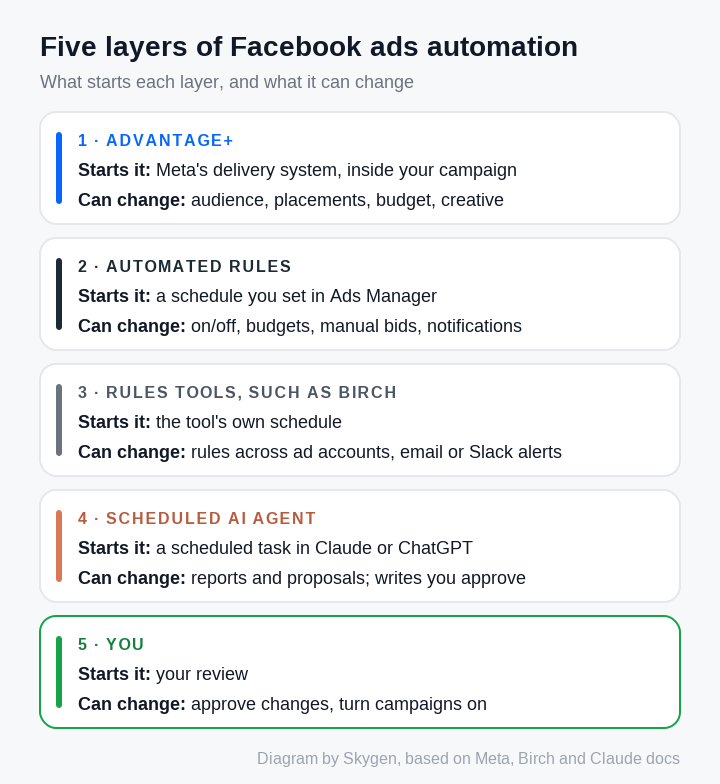
Each layer has its own trigger. The last one is you.
How does an AI agent automate Facebook ads?
An AI agent automates Facebook ads in a loop: something starts it, it reads your account through Meta's ads MCP server, it proposes changes, you approve, and it writes them. Meta's developer reference names the tools for the read and write steps.
- Start. A scheduled task fires. In Claude you pick hourly, daily, weekly, on weekdays, or manually.
- Read. The
ads_get_ad_entitiestool returns spend, impressions, CTR, CPC, CPM and conversions. Theads_insights_anomaly_signaltool detects "unusual patterns or deviations in ad performance." - Propose. The agent writes a short report and a numbered list of changes.
- Approve. You confirm the changes you want.
- Write. The
ads_update_entitytool edits an existing campaign, ad set or ad. New objects are created paused, andads_activate_entityis the step that "starts spending budget." - Log. The
ads_account_get_activity_logstool shows what changed.
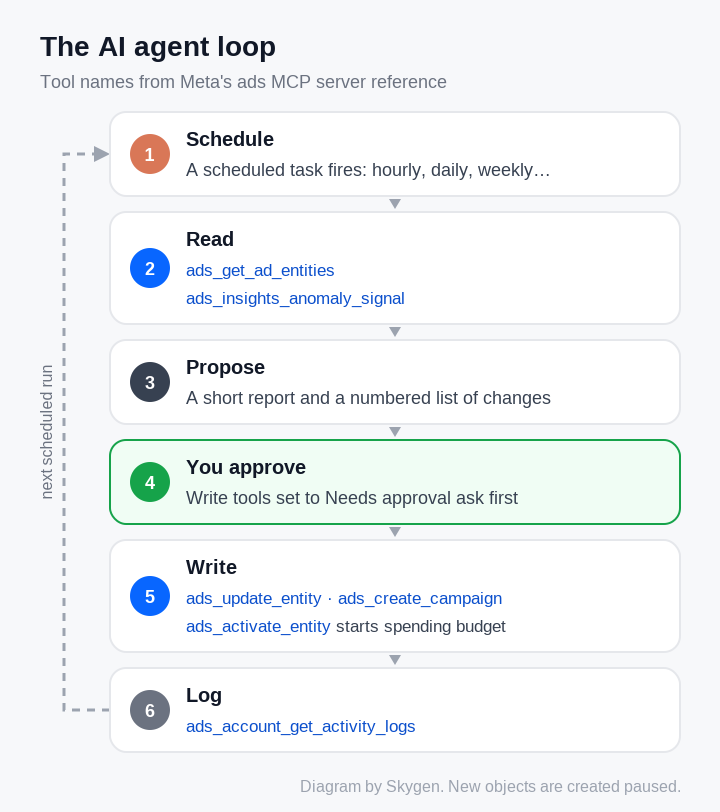
Tool names are from Meta's ads MCP server reference.
Three limits shape the setup:
- An agent doesn't wake itself up. It works when you ask or when a scheduled task starts it.
- It can't build Ads Manager rules. Meta's tool reference, read on October 21, 2026, lists 87 tools in seven categories. None of them creates or edits automated rules.
- It starts new things paused. Meta's help article on ads AI connectors says "All ads are paused by default until you set them live."
Rules tools are adding agents too. Birch's MCP server lets Claude or ChatGPT read Birch rules and logs and switch existing rules on or off, but Birch says it "cannot create new rules, edit budgets or rule conditions."
Before you start: a 5-minute checklist
Check five things first.
- Meta Ads connected to your agent. Our Meta Ads MCP guide covers Claude, ChatGPT, Perplexity and Claude Code.
- Admin access to the ad account. A rule subscriber needs admin permissions in the ad account and full control of the business portfolio.
- Full control of the business portfolio. You need it to block agent actions in Business Suite.
- A paid Claude plan. Claude lists scheduled tasks for Pro, Max, Team and Enterprise.
- A decision on access. Meta's developer docs say "Keep an app at the Read scope unless an agent needs to make changes."
Step 1: Set spending guardrails before anything runs unattended
Set the brakes first. Rules and agents act while you're away, so decide how much they can spend and what they can never do.
Know which budgets are hard caps
Not every budget stops spend:
- Daily budgets flex. Meta's page on daily budgets says "Meta may spend up to 75% over your daily budget" on some days. A day can't pass 175% of the daily budget, and a week can't pass 7 times it. Meta's example: with a $100 daily budget, spend won't pass $700 in a calendar week.
- Lifetime budgets are a hard cap, in Meta's words.
- Campaign spending limits stop every ad set and ad in the campaign once reached, and you get a notification.
- Ad account spending limits cap lifetime spend across all campaigns in the account.
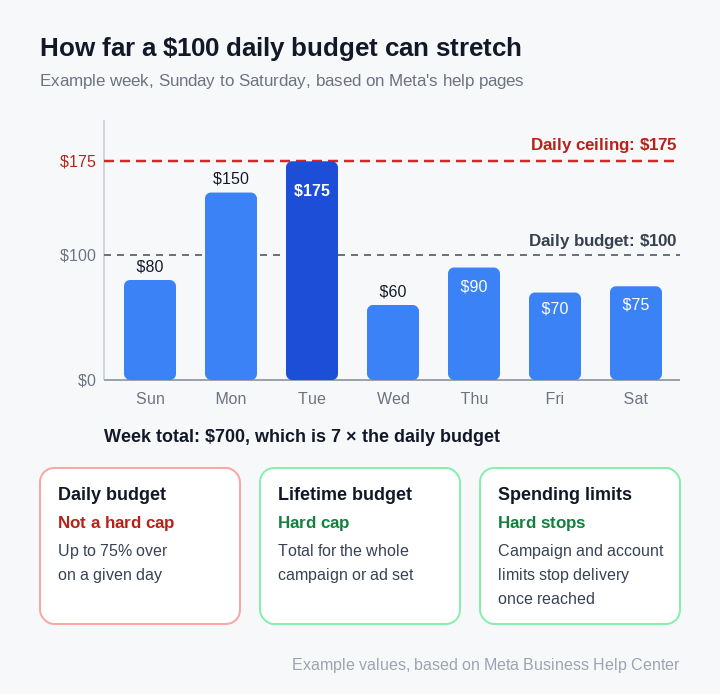
How far each budget can stretch. Example values from Meta's help pages.
Block risky agent actions in Business Suite
Meta lets you set rules for what AI agents may do on each ad account, and its ads MCP server enforces them.
- Go to Settings in Meta Business Suite.
- Below Integrations, select Ads MCP server. If you don't see it, your business doesn't have the feature yet.
- Select the ad account.
- Switch Budgets set above this amount from Not applicable to Blocked and enter a maximum, for example $1,000.
- If agents shouldn't launch anything, switch Create campaigns from Allowed to Blocked.
What you should see: Limited next to Take actions in this ad account. An agent's request to set a budget above your amount is now blocked. To stop all budget changes, set Edit or set budget to Blocked.
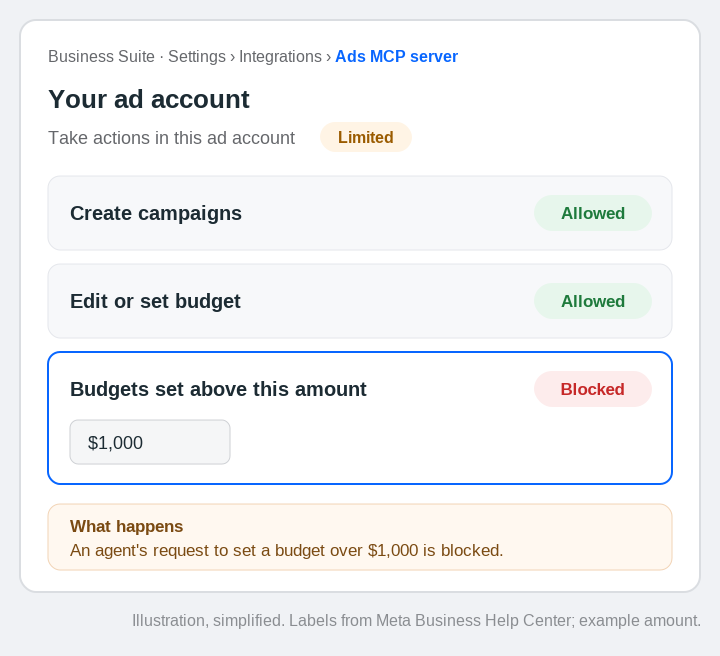
Ads MCP server rules in Business Suite. Illustration, simplified. Example amount.
Through the API, developers can also "deny any budget increase above 20%, or deny delivery status changes," in Meta's examples. These rules are in limited availability. An agency on a shared ad account can set its own rules, which apply only to its employees.
Keep write access away from untrusted input
Meta warns that an agent can call anything your scopes allow, "including in response to malicious instructions hidden in tool outputs (prompt injection)." Those instructions hide in content the agent reads, such as web pages, documents or webhook payloads. Meta's advice: "Don't grant write/manage scopes to AI agents that process untrusted input." Review connected MCP servers at facebook.com > Settings > Business Integrations every few months.
Change budgets in small steps
Meta's example: changing a budget "from $100 to $1000" may send ad sets back into the learning phase. So can a pause of 7 days or longer.
Step 2: Set up automated rules for the always-on jobs
Automated rules are the layer that runs around the clock. You build each one once: what it applies to, what it does, when it fires and how often Meta checks it.
Create a rule from the Campaigns table
These steps follow Meta's guide to creating an automated rule.
- Go to Meta Ads Manager and check the box next to the campaign, ad set or ad.
- Select the More dropdown and choose Create a new rule. One Meta page calls it the Rules dropdown.
- Choose Custom rule.
- Enter a Rule name and pick what to Apply rule to.
- In the Action dropdown, pick what happens: turn off, turn on, send notification only, adjust budget, adjust manual bid, or scale budget or bid.
- Choose Conditions, such as Cost per Result is greater than a value, then select Add. Select + for more.
- Set the Time range (days of data the rule looks at) and the Schedule (how often Meta checks it).
- Add a Subscriber for notifications, then select Create.
What you should see: in Meta's words, "Your rule is now active." Track it on the Automated rules page.
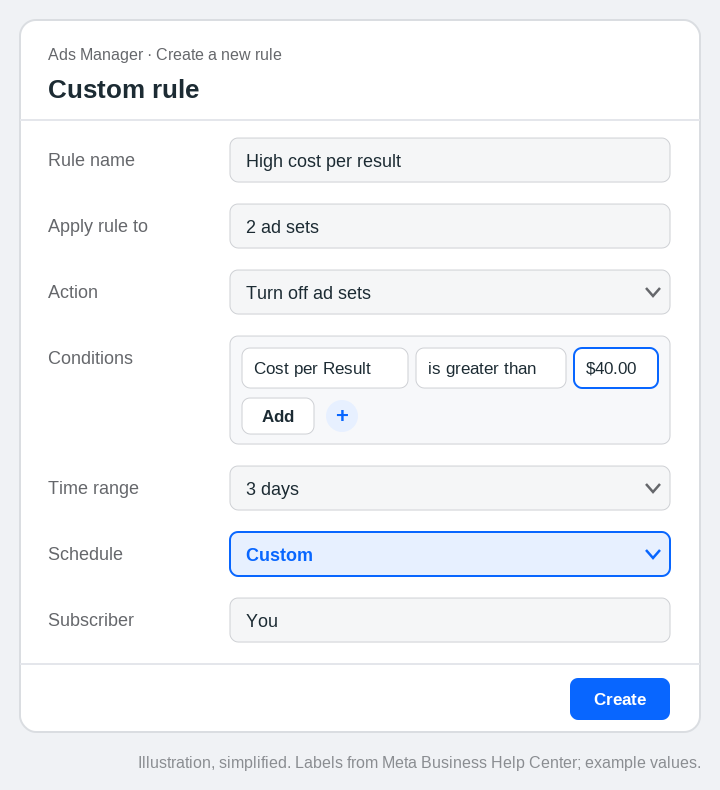
A custom rule in Ads Manager. Illustration, simplified. Example values.
Create a rule for the whole account
To cover all campaigns, ad sets or ads, open the Automated rules page and click + Create rule. Rules apply at the ad account level, so they cover ads anyone on your team makes.
The same dialog offers two templates that can change campaigns for you. Reduce auction overlap can permanently pause ad sets that compete without results. Reduce audience fragmentation can combine ad sets, and Meta says the combined audience "could become wider than the sum of your audiences."
Choose how often the rule runs
- In the rule's Schedule section, select Custom.
- Select the days and times you want, then click Close.
- Click Create or Save rule.
Developers can also create rules through the Marketing API's ad rules engine. There, schedule-based rules run daily at midnight in the account's time zone, every hour, every half hour, or on a custom schedule.
Know the limits before you build
- Up to 250 rules per ad account, active and inactive.
- One of each condition per rule, and all conditions must be met to trigger it.
- One level per rule: 3 campaigns or 3 ad sets, not both.
- No rules on ads about social issues, elections or politics, and no pausing reservation campaigns.
- No cost-based on/off rules under campaign budget optimization. Recipe 3 has the workaround.
- You can't change where a rule applies or what it does after you create it. Delete it and start over.
Check what your rules did
- Open Automated rules and check the Manage rules table. The toggle is blue when a rule is on and gray when it's off.
- Select Activity on the left to see each rule's results.
What you should see: results such as "No action," "Notification sent" or a count of objects turned off. Business notifications in Ads Manager also tell you when a scheduled rule fails to make a change.
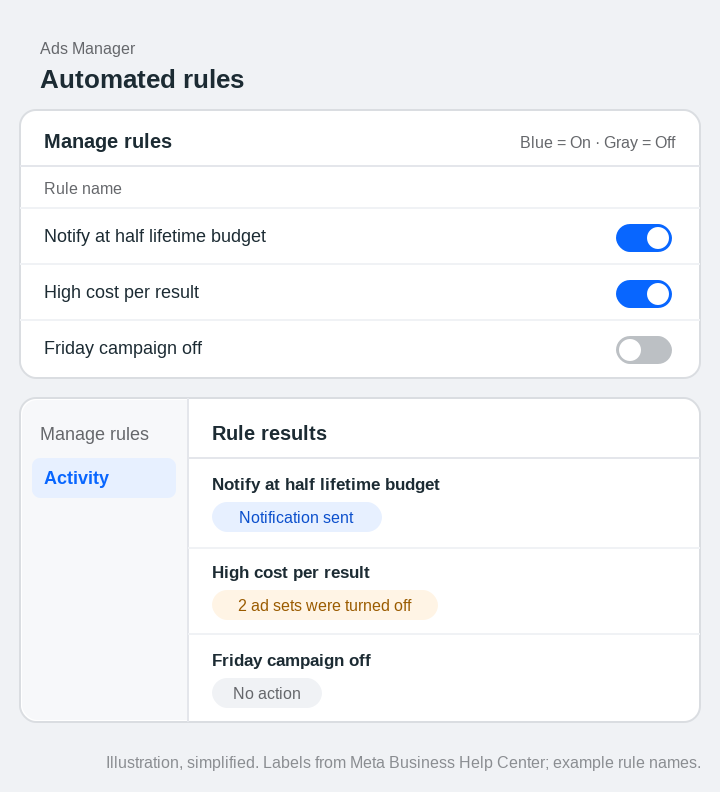
Manage rules and Activity. Illustration, simplified. Example rule names.
Step 3: Schedule an AI agent to check your account
A scheduled task makes an agent check your account on its own. Set it to report and propose, and keep write tools behind an approval.
Create a scheduled task in Claude
These steps follow Claude's help article on scheduled tasks. Claude says scheduled tasks can use your connected tools, such as the Meta Ads connector.
- Click Scheduled in the left sidebar.
- Click New task, then choose Set up manually.
- Enter a Task name, for example "Meta ads morning check."
- Paste the prompt. The template below is a safe start.
- Choose the approval mode.
- Pick how often it runs: hourly, daily, weekly, on weekdays, or manually.
- Click Save.
Claude says scheduled tasks "run remotely, so they run on their cadence even when your computer is asleep or the Claude Desktop app is closed."
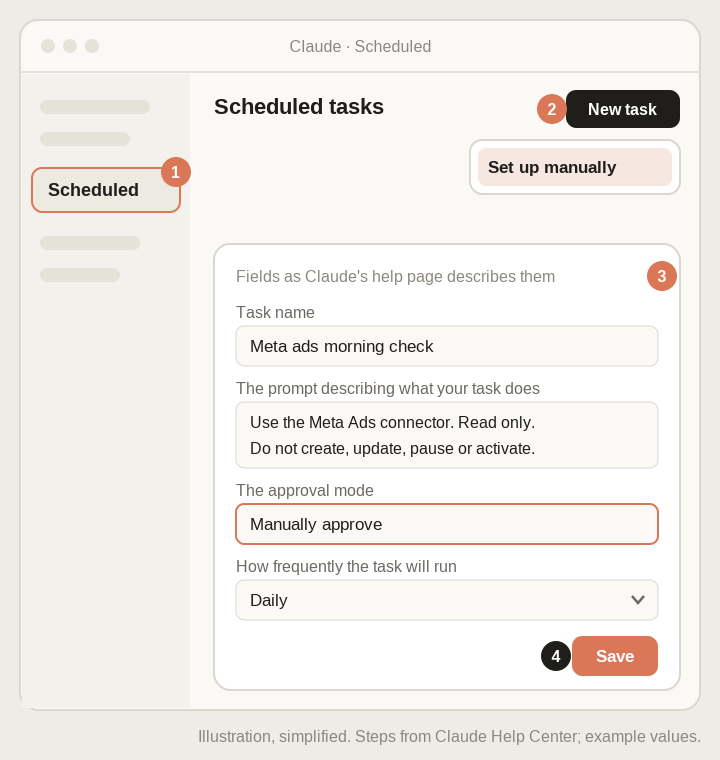
A scheduled task in Claude. Illustration, simplified: field names follow Claude's help page wording, and the app's own labels may differ.
Make Meta Ads write tools ask first
Claude's modes decide when it asks before using a tool, and each connector tool is set to "Always allow," "Needs approval" or "Blocked." Claude's guide to Cowork shows how they combine:
| Mode | Always allow | Needs approval | Blocked |
|---|---|---|---|
| Manual | Approved | Asks for permission | Denied |
| Auto | Read-only tools approved; for write/delete tools, Claude decides | Claude decides | Denied |
| Skip | Approved | Approved | Denied |
For Meta ads, leave read tools on Always allow, set write tools to Needs approval, and use Manual mode. Claude's own advice: "For work with real consequences—money, messages sent as you, important files—stay close and review what Claude does."
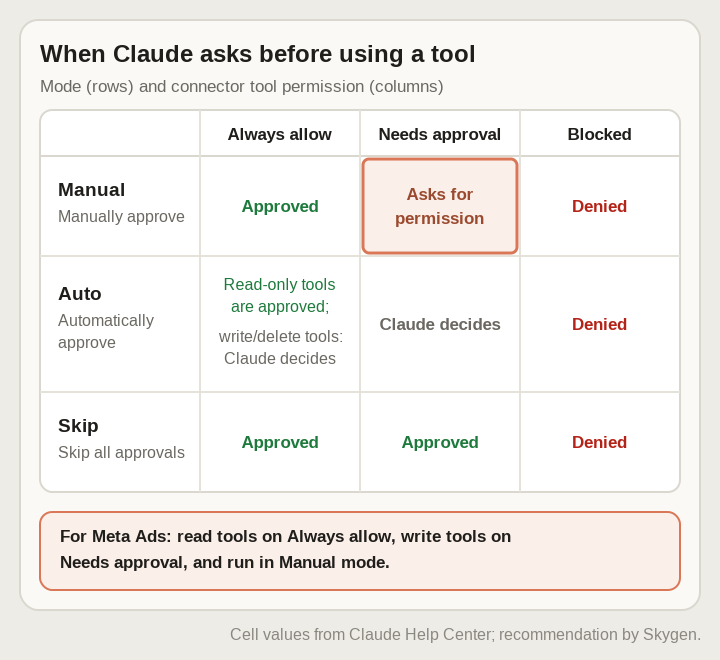
How Claude's modes and tool settings combine. From Claude's help center.
One gap: Claude's help page doesn't say what an unattended run does when it reaches a tool that needs approval. For Claude Code Desktop tasks, the docs say "the run stalls until you approve it." So write the prompt so a scheduled run never calls a write tool.
Keep cloud tasks read-only
Claude Code's cloud scheduled tasks work differently. The docs say "You don't choose a permission mode," and "Claude can use every tool from an included connector, including writes, without asking for permission during a run." Remove the Meta Ads connector from such a task, or connect it with Read access only.
Scheduling in ChatGPT
ChatGPT can also "schedule recurring tasks to run in the background," reviewed under Scheduled, and OpenAI's docs say web tasks can use connected tools. We couldn't confirm whether a scheduled run asks before a write action, so keep ChatGPT tasks to reports.
A prompt that reports but never applies
Paste this into the task and fill in the placeholders.
Use the Meta Ads connector. Read only. Do not create, update, pause or activate anything.
For ad account <AD_ACCOUNT_ID>, yesterday versus the previous 7 days:
1. Spend, results and cost per result for each active campaign.
2. Anomalies flagged by ads_insights_anomaly_signal.
3. Delivery-blocking errors from ads_get_errors.
4. Ad sets whose cost per result is above <TARGET>.
End with "Proposed changes": a numbered list with the object, the exact change and why.
What you should see: a run under Scheduled with a short report and a numbered list of proposals. Nothing in your ad account has changed.
Step 4: Review and approve what the agent proposes
Approve changes one at a time, in a chat, while you watch.
- Open the run in Scheduled and read the proposals.
- Ask for one change in a chat, for example: "Lower the daily budget of
<AD SET>from $100 to $80. Show me the current value first." The amounts are examples. - Approve the tool call. In Manual mode, Claude asks before a tool set to Needs approval runs.
- Turn on new objects yourself. Anything the agent created is paused. Meta's docs say "your AI client asks for confirmation before activation."
- Check the log. Ask: "Show the activity log for this ad account for the last 24 hours." Then open Automated rules → Activity.
What you should see: one new log entry for the object you changed, and nothing else.
10 automation recipes, with prompts
Each recipe names the layer that runs it. Thresholds are yours to set.
Recipe 1: Get warned at half a lifetime budget
Layer: automated rule, Meta's own example. On the Automated rules page, select Create rule and choose the ad sets. Set the action to Send notification only and the condition to Lifetime ratio spent is greater than 0.5. Meta notifies you by email and in Ads Manager.
Recipe 2: Turn a campaign off after a set time
Layer: automated rule. Meta's example turns a campaign off 5 hours after creation. Choose Turn off campaigns, then Time and Hours since creation, and enter 5. The clock starts at creation, so pausing doesn't reset it.
Recipe 3: Turn off ad sets above your target cost per result
Layer: automated rule. Choose Turn off ad sets and Cost per Result is greater than your target. Under campaign budget optimization, Meta blocks this rule: build it for the campaign instead, or for ad sets without campaign budget. Meta warns this kind of rule "can also retrigger the learning phase."
Recipe 4: Cap budget increases
Layer: rule plus agent guardrail. A budget rule can change a budget "by a percentage or fixed amount, or set a maximum or minimum budget." Set the maximum. For agents, add Budgets set above this amount in Business Suite.
Recipe 5: Morning anomaly digest
Layer: scheduled agent, daily, read-only.
"Read only. For yesterday, list campaigns flagged by ads_insights_anomaly_signal and errors from ads_get_errors. For each, give spend and cost per result versus the prior 7 days, and one proposed next step."
Recipe 6: Creative fatigue watch
Layer: Meta's flag plus a weekly agent check. The Delivery column shows Creative limited when cost per result is above your past ads but under twice as much, and Creative fatigue at twice or more. It covers ad sets with one creative. Meta notes that keeping the original ad active "may maximize results."
"Read only. For the last 14 days, track cost per result and CTR for each active ad with ads_insights_performance_trend. List ads where cost per result rose and CTR fell week over week."
Recipe 7: Weekly change audit
Layer: scheduled agent, weekly, read-only.
"Read only. Pull ads_account_get_activity_logs for the last 7 days. Group changes by person and object. Flag any budget change above 20% and any activation."
The 20% is an example threshold.
Recipe 8: Pixel signal check
Layer: scheduled agent, weekly, read-only.
"Read only. Report Event Match Quality for my main dataset with ads_get_dataset_quality. Then use ads_get_dataset_stats to list any event whose volume dropped to zero this week."
Recipe 9: Launch prep without spending
Layer: agent in a live chat. Meta's write tools create the campaign, ad set and ad paused. Preview them, then activate yourself.
Recipe 10: Spend pacing check
Layer: scheduled agent, daily, read-only.
"Read only. For each active ad set, compare yesterday's spend with its daily budget and this week's spend with 7 times the daily budget. List anything above 150% of its daily budget yesterday."
The 150% is an example alert level below Meta's 175% daily ceiling.
Troubleshooting
These checks come from Meta's and Anthropic's docs.
| Problem | What to check |
|---|---|
| A rule never fires | All conditions must be met at once. Check the time range and schedule. |
| You can't save a cost-based on/off rule | The campaign uses campaign budget optimization. Build the rule for the campaign, or change the action. |
| A rule ignores some ads | Rules can't run on ads about social issues, elections or politics, or pause reservation campaigns. |
| Ads turned off without a rule match | Ad sets also turn off when they spend their budget, reach their end date or under-deliver. |
| You can't add a subscriber | They need ad account admin permissions and full control of the business portfolio. |
| "Ads MCP server" is missing in Business Suite | Your business doesn't have the feature yet. |
| An agent's change was denied | An ads MCP server rule blocked it. Check Settings → Integrations → Ads MCP server. |
| A scheduled run is waiting | A tool needed approval. Claude Code Desktop runs stall until you approve. |
| Ad sets went back into learning | A large budget edit or a pause of 7 days or more can restart learning. |
Rules, rules tools or an AI agent: which to use?
Use Meta's rules for conditions you can write down, a rules tool for many accounts or frequent checks, and an agent for reports and proposals. Each row uses only that product's own page, read on October 21, 2026.
| Option | What it automates | Runs on its own? | Brake on changes |
|---|---|---|---|
| Meta automated rules | On/off, budgets, manual bids, notifications | Yes, on your schedule | Send notification only; 250 rules per account |
| Advantage+ | Audience, placements, budget, creative, destination | Yes, inside the campaign | Account controls for locations, age and placements, rolling out gradually |
| Birch | Rules with 20+ actions, alerts by email or Slack | Yes, as often as every 15 minutes | Automation logs; its MCP can't create rules |
| Make | Scenarios that watch and update campaigns, ad sets and ads | Yes, per scenario | Every module needs ads_management |
| Zapier | Facebook Lead Ads to CRMs, sheets and alerts | Yes, on each new lead | Lead routing, not campaign changes |
| Claude or ChatGPT + Meta ads MCP | Reports, proposals, edits through tools | Only through a scheduled task | Client permissions plus Business Suite rules |
| Skygen (our product) | Audit, rules you check on demand, prepared changes | No | The account owner approves every write |
Automating Meta ads with Skygen
Skygen reads your Meta ad account, checks it against rules you save, and prepares changes for you to approve. You start every check and approve every change.
- Connect your Meta ad account and run the free audit. It reads the last 30 completed days and runs six checks: Account access, Campaign structure, Performance & spend, Conversion signals, Ads & creatives and Next steps. No changes are made during the audit.
- Save a rule. Pick a metric such as Spend, Cost per result (CPA) or Cost per lead, set Below or Above a threshold over the last 7, 14 or 30 complete days, and choose Suggest pausing campaign, Suggest budget reduction (1% to 50%) or Flag for review.
- Click Check now. A match becomes a proposal, not a change.
- Approve the exact change. The Confirm this change dialog says "Its condition is checked again before sending. No ongoing permission is granted." Nothing goes to Meta until you tick "I approve this exact change." and click Confirm change.
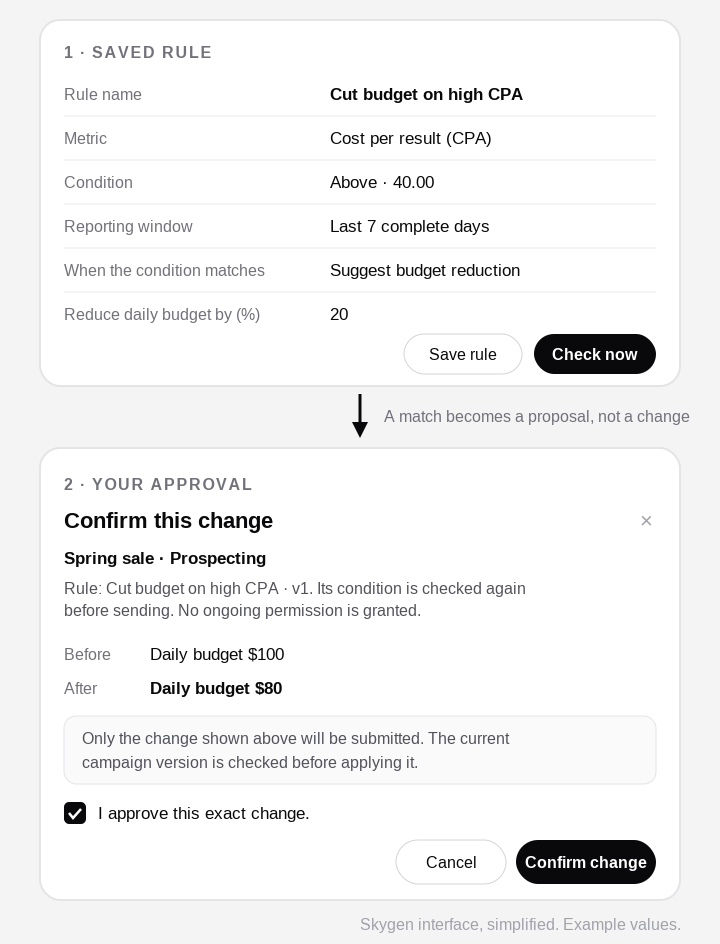
A Skygen rule becomes a proposal you approve. Skygen interface, simplified. Example values.
What Skygen can change on Meta: pause or resume campaigns, ad sets and ads, edit existing daily budgets (ad-set budgets in USD, EUR or GBP), and create campaigns paused. One approval then activates a campaign: its ads, then its ad sets, then the campaign. From Claude Code, Codex or Cursor, use a key from Coding agents in the app; a key doesn't skip the approval.
What Skygen doesn't do yet: in its own words, "Scheduled checks and automatic execution are not connected." Rules don't send notifications. Lifetime budgets aren't editable. Google Ads, TikTok and LinkedIn changes aren't enabled. For changes that must happen at 3 a.m. with nobody watching, use Meta's automated rules.
The short version
Set the caps first: a lifetime budget or spending limit, plus Business Suite rules for agents. Build automated rules for conditions you can write down. Schedule an agent to report and propose, and approve changes yourself, one at a time.
Need to connect an agent first? Read our Meta Ads MCP guide. Running Google Ads too? See our guide to the Google Ads MCP server.