
Google Ads MCP is Google's official server for connecting an AI agent to your Google Ads account. It's free, open source and read-only. Your agent can list your accounts and pull reports, but it can't change a bid, pause a campaign or create anything.
This guide covers the one-time Google Cloud setup, every major client, prompts to try and fixes for common errors.
Key takeaways
- Google's server is googleads/google-ads-mcp on GitHub. Google lists its mode as read-only in the current release.
- You no longer need a developer token. Google sunset them on September 9, 2026.
- Desktop and command-line clients run it on your computer. claude.ai and ChatGPT need it on a public URL, such as Cloud Run.
- For an agent that makes changes, you need a different, write-capable server.
What is Google Ads MCP?
Google Ads MCP is an open-source server from Google's Google Ads API team. Google's developer guide calls it "a standardized bridge to the Google Ads API" that lets AI agents analyze and retrieve campaign data in natural language. Google announced it on October 7, 2025, and last updated the guide on October 16, 2026.
MCP, the Model Context Protocol, is an open standard for connecting AI models to outside data. Your agent picks a tool, calls it and turns the result into an answer.
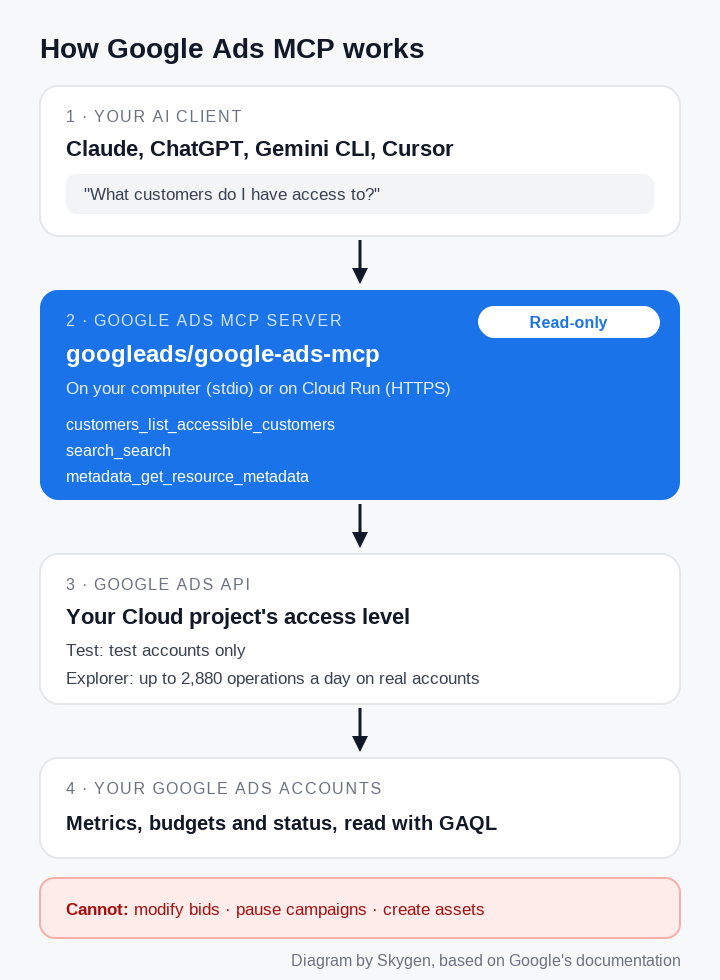
How the pieces fit together. The server reads; it never writes.
- It runs where you put it. It's written in Python and runs over standard input/output on your computer or over Streamable HTTP on Cloud Run. Sign-in is OAuth 2.0 or a service account.
- It's an early version. The GitHub repository shows version 0.0.5, released on October 9, 2026, under the Apache 2.0 license.
- The name isn't unique. Third-party servers use it too. Here, it means Google's server.
Google also runs a hosted endpoint pilot for allowlisted participants. Everyone else runs the server themselves.
What Google Ads MCP can and can't do
The server gives your agent three tools. Google's docs name them without a prefix. With the default configuration, your client shows them with a group prefix.
| Tool (name in your client) | What it does | Try asking |
|---|---|---|
list_accessible_customers (customers_list_accessible_customers) | Lists the customer IDs your login can reach | "What customers do I have access to?" |
search (search_search) | Runs Google Ads Query Language (GAQL) queries for metrics, budgets and status | "How many active campaigns do I have?" |
get_resource_metadata (metadata_get_resource_metadata) | Shows which fields a resource, such as "campaign", can return | "Which fields can I report on for search terms?" |
You never write GAQL yourself. The search tool tells the agent "Do not guess the fields" and to look them up first.
What it can't do:
- Change anything. Google's guide says it "is strictly read-only. It cannot modify bids, pause campaigns, or create new assets." The code agrees: each tool carries MCP's read-only hint, search only calls Google's streaming read method, and the bundled config has no write group.
- Keyword research. There's no Keyword Planner tool. Explorer access, the first level that reaches real accounts, also blocks Google's planning services.
- Make changes through code. For that, Google points developers to its Developer Assistant, a plugin for Antigravity and Claude Code that generates client library code, including mutate scripts.
ChatGPT respects the read-only hint. OpenAI treats tools without it as write actions that need confirmation, so Google's three tools count as reads.
Pick your setup path
Where you use your agent decides where the server runs.
| You use | Where the server runs |
|---|---|
| Claude Desktop, Claude Code, Gemini CLI or Cursor | On your computer, started by the app |
| claude.ai or ChatGPT | On a public HTTPS URL, such as Google Cloud Run |
| Any client, and you want changes too | On a vendor's servers (see the comparison below) |
Web clients can't start a program on your computer. Claude connects to custom connectors "from Anthropic's cloud infrastructure, rather than from your local device", and ChatGPT needs "a public HTTPS endpoint or Secure MCP Tunnel". Claude Desktop's local config is a separate mechanism that uses your own network.
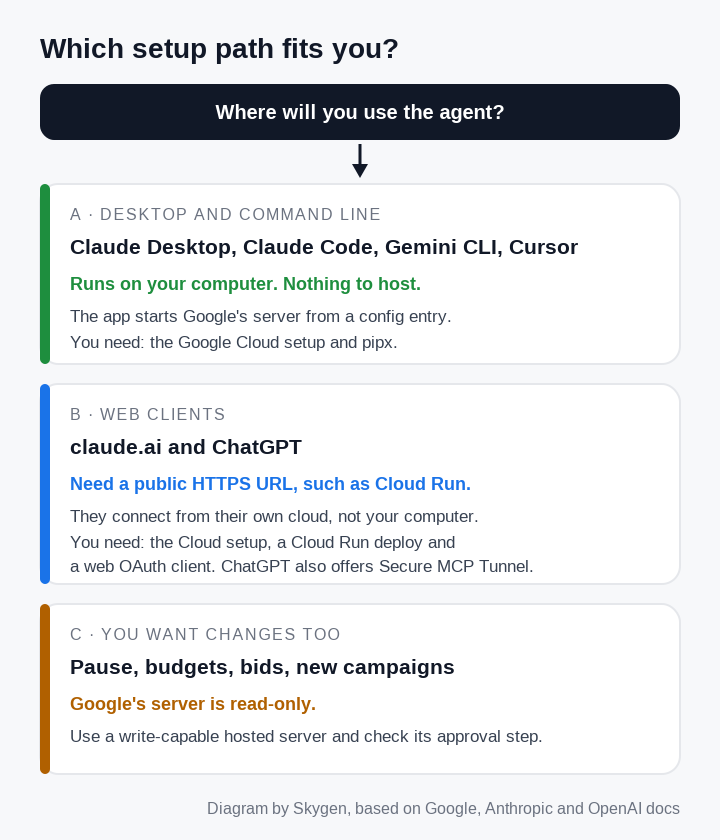
Pick the path first. The Google Cloud setup is the same for both of Google's routes.
Before you start: set up Google Cloud once
Both of Google's routes need these seven steps once.
Step 1: Create a project
Go to the Manage resources page in the Google Cloud console, click Create project, enter a name and click Create. Google says billing is optional, and there's no charge for using the Google Ads API. One billing catch comes up in Step 3.
Step 2: Turn on the Google Ads API
Open the API Library, select Google Ads API and click Enable. Your project now has Test access, which "can only make Google Ads API requests against test accounts".
Step 3: Apply for Explorer access
Real accounts need Explorer access. Google's access levels page gives these steps:
- Open the Google Ads API Overview page in your Cloud project.
- Check that your current access level shows as Test.
- Expand the Upgrade access level section.
- Confirm that the next access level is Explorer.
- Click Apply for access.
Google approves Explorer automatically "in most cases". It allows up to 2,880 operations a day on production accounts.
Watch out: Google lists a known issue where Explorer is refused for projects on the Google Cloud Free Trial or with suspended billing. Its workaround is to upgrade the project to a paid tier.
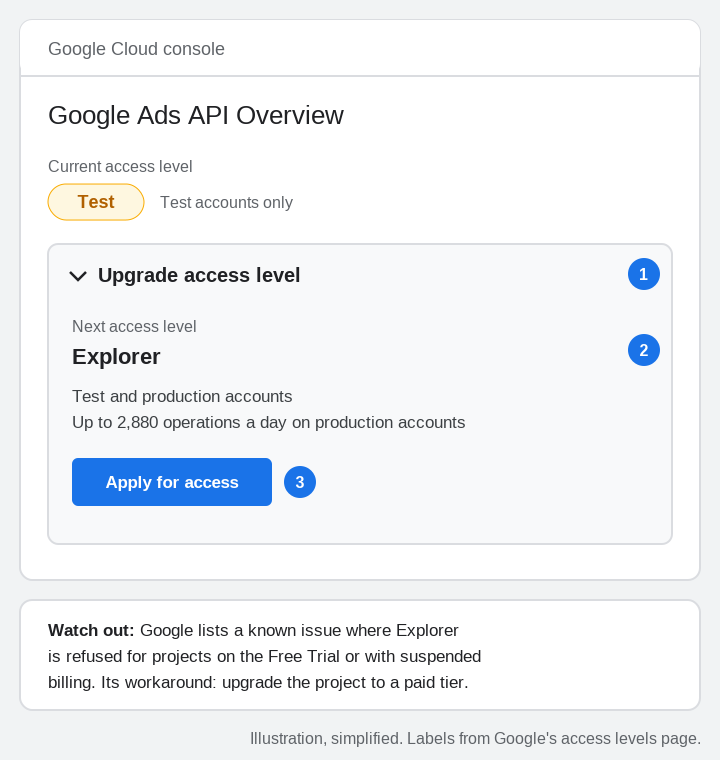
Explorer is the first level that reaches real accounts. Illustration, simplified.
Step 4: Set up the consent screen
Google's MCP guide names two places:
- APIs & Services > OAuth consent screen > Data Access: choose Add or remove scopes and add
https://www.googleapis.com/auth/adwords. - APIs & Services > OAuth consent screen > Audience: under Test users, click + Add users and add the Google account that can see your Google Ads accounts.
New consent screens start in Testing: up to 100 test users, and Google shows them a warning first. That's expected.
Step 5: Create an OAuth client
On the Google Auth Platform Clients page, click CREATE CLIENT and pick the desktop application type. You can tick Use this client for an AI-powered agent. Google's best practice is a separate client ID for AI agents and MCP integrations.
Download the JSON file right away. Google shows the full client secret only once.
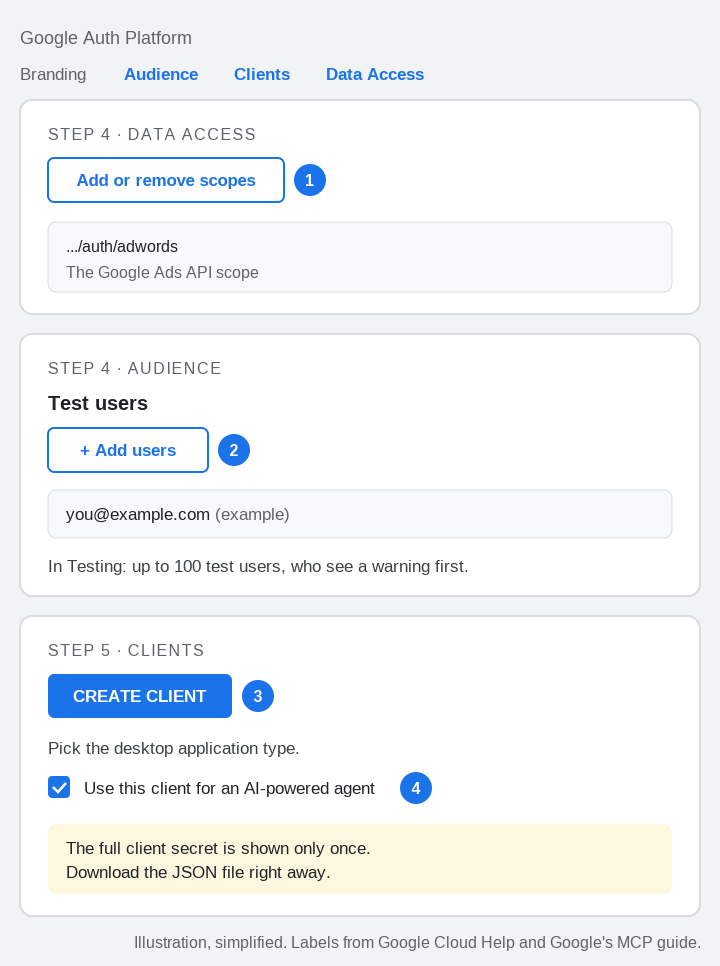
Steps 4 and 5. Illustration, simplified.
Step 6: Create credentials on your computer
Install the gcloud CLI and pipx, which Google's configuration uses to start the server. Then run this command from Google's README with your JSON file:
gcloud auth application-default login \
  --scopes https://www.googleapis.com/auth/adwords,https://www.googleapis.com/auth/cloud-platform \
  --client-id-file=YOUR_CLIENT_JSON_FILE
What you should see: Credentials saved to file: [PATH_TO_CREDENTIALS_JSON]. Copy that path for the configs below.
Step 7: Find your customer ID
In Google Ads, click your profile picture in the top right corner. Your customer ID is under your account name. Drop the hyphens: Google says to use 1234567890, not 123-456-7890.
No developer token needed. Google sunset developer tokens on September 9, 2026. Its MCP guide says they're "no longer required in the latest version of the Google Ads MCP server", and a token you still send is "optional and ignored by the API servers". Google's README examples still show GOOGLE_ADS_DEVELOPER_TOKEN. Leave it out.
How to connect Google Ads MCP to Claude Desktop
Claude Desktop starts Google's server on your computer, so there's nothing to host. The steps follow the MCP guide to local servers.
- Click the Claude menu in your system's menu bar and select Settings…
- Open the Developer tab and click Edit Config. This opens
claude_desktop_config.json. - Paste Google's configuration with your project ID and credentials path.
- Completely quit Claude Desktop and open it again.
- Click Add files, connectors, and more / in the chat box, hover over Connectors and click Manage connectors.
{
  "mcpServers": {
    "google-ads-mcp": {
      "command": "pipx",
      "args": ["run", "--spec", "git+https://github.com/googleads/google-ads-mcp.git", "google-ads-mcp"],
      "env": {
        "GOOGLE_PROJECT_ID": "YOUR_PROJECT_ID",
        "GOOGLE_APPLICATION_CREDENTIALS": "/path/to/credentials.json"
      }
    }
  }
}
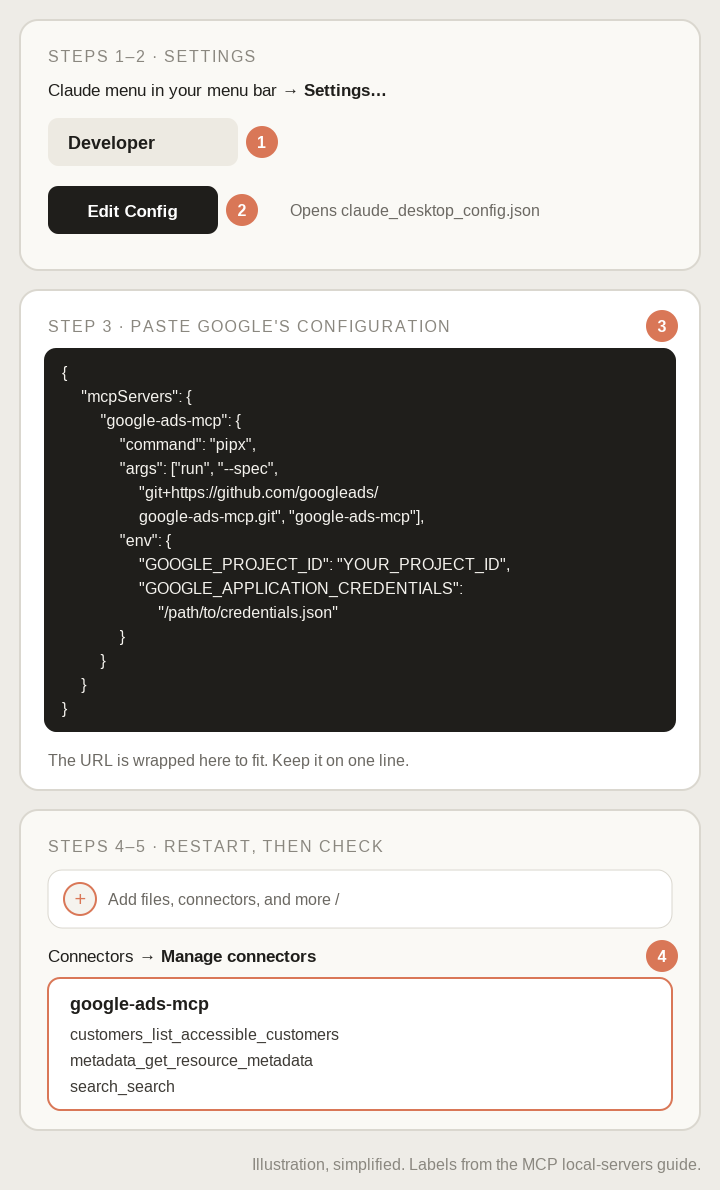
Steps 1–5 in Claude Desktop. Illustration, simplified.
What you should see: google-ads-mcp with three tools. If you work through a manager account, add "GOOGLE_ADS_LOGIN_CUSTOMER_ID": "YOUR_MANAGER_ID" to env.
How to connect from Claude Code, Gemini CLI or Cursor
Google's README says the mcpServers block is the same across MCP clients. Only its location changes.
Claude Code
Claude Code's docs say to pass claude mcp add-json the object inside mcpServers:
claude mcp add-json google-ads-mcp '{"command":"pipx","args":["run","--spec","git+https://github.com/googleads/google-ads-mcp.git","google-ads-mcp"],"env":{"GOOGLE_PROJECT_ID":"YOUR_PROJECT_ID","GOOGLE_APPLICATION_CREDENTIALS":"/path/to/credentials.json"}}'
Check it with claude mcp get google-ads-mcp. claude mcp list shows ✔ Connected for a working server. Ignore the README's hint about ~/.claude/settings.json: Claude Code stores servers in ~/.claude.json or a project's .mcp.json.
Optional: Google's agent skills include an account-diagnostics skill built on this server. Install them with npx skills add google/skills/skills/ads --agent=claude-code.
Gemini CLI
Put Google's block in ~/.gemini/settings.json, or .gemini/settings.json for one project. Keep GOOGLE_APPLICATION_CREDENTIALS in the server's env block: Gemini CLI strips inherited variables that match patterns such as *CREDENTIAL*.
Cursor
Put the block in ~/.cursor/mcp.json, or .cursor/mcp.json for one project. Cursor asks before it uses MCP tools by default. If the server fails, open the Output panel and select MCP Logs.
How to connect Google Ads MCP to ChatGPT or Claude on the web
Both need the server on a public HTTPS URL. Google's guide uses Cloud Run.
Deploy to Cloud Run
Google's guide builds the image with Cloud Build, so you don't need Docker locally, then deploys it:
gcloud run deploy google-ads-mcp \
  --image us-central1-docker.pkg.dev/YOUR_PROJECT_ID/mcp-servers/google-ads-mcp:latest \
  --platform managed \
  --region us-central1 \
  --allow-unauthenticated \
  --set-env-vars="GOOGLE_PROJECT_ID=YOUR_PROJECT_ID,GOOGLE_ADS_MCP_OAUTH_CLIENT_ID=YOUR_CLIENT_ID,GOOGLE_ADS_MCP_OAUTH_CLIENT_SECRET=YOUR_CLIENT_SECRET,FASTMCP_HOST=0.0.0.0"
Cloud Run assigns the URL on the first deploy. Add GOOGLE_ADS_MCP_BASE_URL afterwards with gcloud run services update.
This route needs a second OAuth client, of the Web application type. Add https://claude.ai/api/mcp/auth_callback and https://chatgpt.com/connector_platform_oauth_redirect as authorized redirect URIs.
Never deploy it open. Without the OAuth client ID and secret, Google says the server falls back to Application Default Credentials, "exposing the container's service account credentials to unauthenticated callers". With them, it answers unauthenticated callers with HTTP 401.
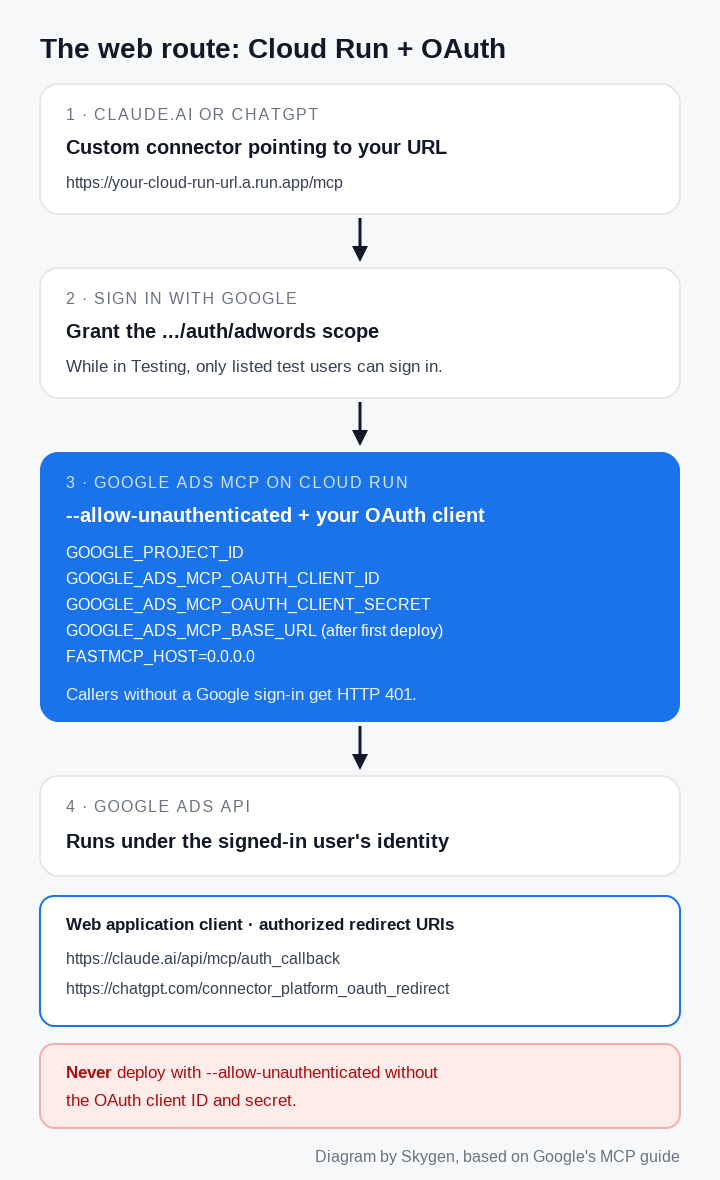
Every request runs under the signed-in user's Google identity.
ChatGPT
The steps follow OpenAI's guide to custom MCP servers:
- Open ChatGPT on the web and go to Plugins.
- Select the plus button, then Add custom MCP server.
- Under Connection, enter your Cloud Run URL ending in
/mcp. - Choose OAuth and enter your own client ID and secret.
- Select I understand and want to continue, then Create as a plugin.
- Install it, then type
@in a chat and pick it.
Workspace policies apply. OpenAI's Secure MCP Tunnel can connect a private server instead.
Claude on the web
The steps follow Claude's help center for Pro and Max:
- Open Customize > Connectors, click + Add, then Add custom connector.
- Enter a name and your Cloud Run URL, then click Continue.
- Under OAuth client, choose Use your own OAuth client, then click Add.
- In a chat, click +, open Connectors and switch it on.
On Team and Enterprise, an owner adds it first in Organization settings > Connectors.
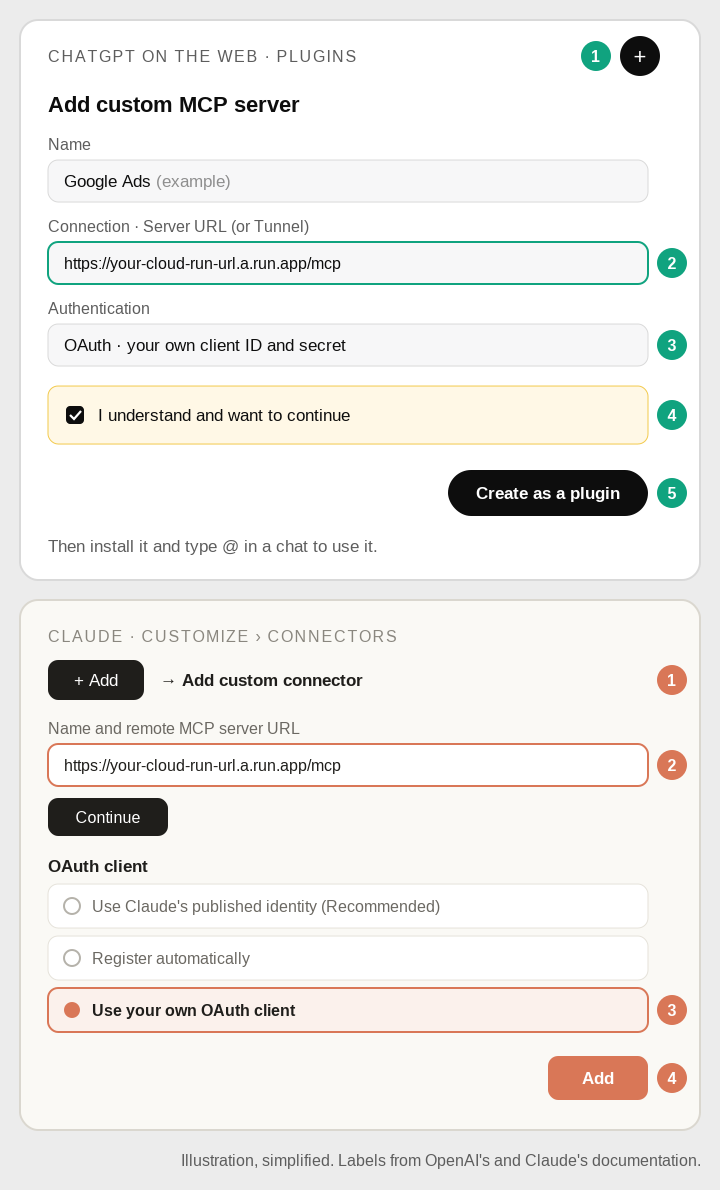
ChatGPT and Claude on the web. Illustration, simplified.
Your first 10 minutes: three safe reads
Every call is a read. Start with Google's sample prompts:
- "What can the google-ads-mcp server do?"
- "What customers do I have access to?"
- "Give me a report of the top spending campaigns split by device category over the last 7 days for account 1234567890" (an example ID).
What you should see:
- A description of the three tools.
- A list of 10-digit customer IDs. Google's guide mentions account names, but the code returns IDs only, so ask for names next.
- A report. The search tool tells the agent to look up campaign fields with
get_resource_metadatabefore it runssearch.
The README says the agent "will need and ask for a customer id for most prompts", so include it. Accounts you reach through a manager account don't appear in that list. Google's fix is to query customer_client with the manager as login customer ID.
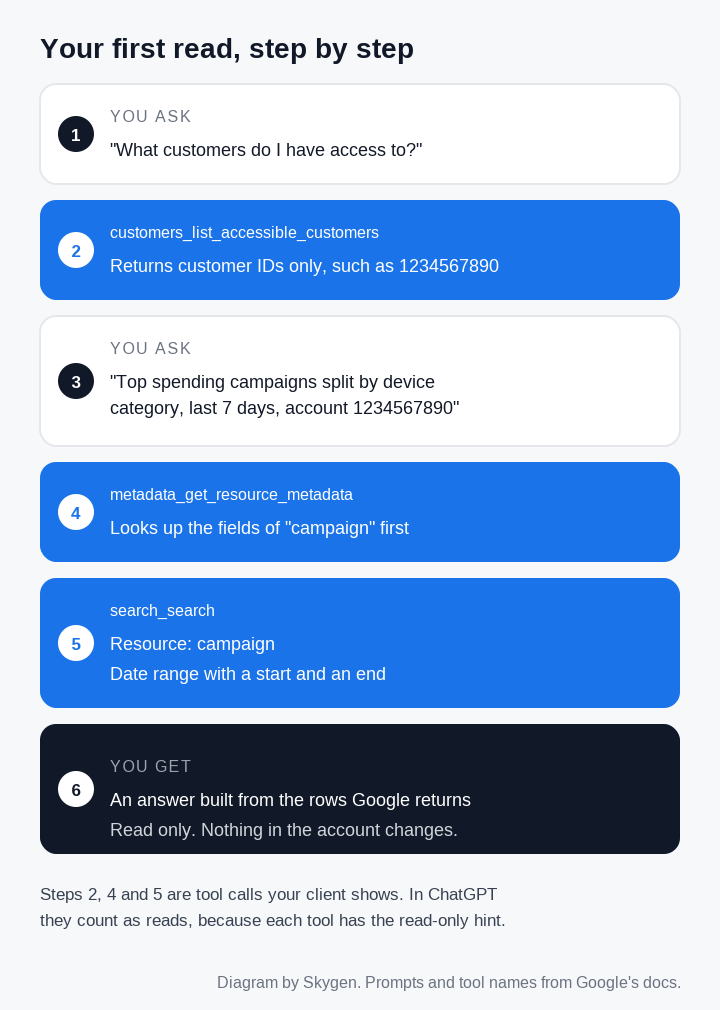
A first read. Tool names as your client shows them.
Prompt library: 20 prompts to try
These are prompts to try, not results we ran. Each names the tool and the resource it should use, from the server's own resource list. IDs and dates are examples. Give exact dates: the search tool needs a start and an end.
Reporting (search)
- "For account 1234567890, show cost, clicks and conversions by campaign from 2026-10-01 to 2026-10-20." · campaign
- "Compare cost per conversion for my top 10 campaigns this week and last week." · campaign
- "Which countries spent the most this month?" · geographic_view
- "Which landing pages got the most clicks last month?" · landing_page_view
Search terms and keywords
- "List search terms with cost over $50 and no conversions in the last 30 days." ·
search· search_term_view - "Group last month's search terms by theme and flag themes with no matching keyword." ·
search· search_term_view, keyword_view - "Which keywords spent the most last month?" ·
search· keyword_view - "Which fields can I report on for search terms?" ·
get_resource_metadata· search_term_view
Budgets, ads and Performance Max (search)
- "Show each campaign's daily budget next to its average daily cost for the last 14 days." · campaign_budget, campaign
- "Which campaigns lost the most impression share to budget last week?" · campaign
- "List my responsive search ads with clicks and conversions, worst first." · ad_group_ad
- "List my Performance Max asset groups with their status." · asset_group
Changes and diagnosis (search)
- "What changed in this account in the last 7 days, and who made each change?" · change_event
- "List Google's open recommendations for this account by type." · recommendation
- "Conversions dropped on 2026-10-14. Check campaign status, budgets and change history around that date." · campaign, campaign_budget, change_event
Conversions (search)
- "List my conversion actions with their status and category." · conversion_action
- "Are any offline conversion uploads failing?" · offline_conversion_upload_conversion_action_summary
Accounts (search)
- "Using manager account 1112223333 as login customer ID, list every client account." · customer_client
- "For each client account, show cost and conversions for the last 30 days." · customer_client, campaign
- "What's the name, currency and time zone of account 1234567890?" · customer
Every prompt here reads. To act on a finding, change it in Google Ads yourself or use a server that can write.
How to keep it safe
The risks are your data and your credentials.
- Your data goes to the model. The README says the server "will expose your data to the Agent or LLM that you connect to it".
- Never run Cloud Run without OAuth. Keep the client ID and secret set.
- Keep credentials out of shared config. Credentials in a client's config give "less credential isolation", per the README.
- Sign in as a Read-only user. The Google Ads API uses one OAuth scope for reads and writes and "follows the same user roles that Google Ads supports". Read-only users can view campaigns but not edit them. That matters if you later add a server that writes.
- Approve tools on purpose. Claude's help center says to click "Allow always" only for tools you trust to run unsupervised. Gemini CLI's
trustsetting skips confirmations. It's off by default. - Watch the limit. Explorer allows 2,880 operations a day, and the API returns an error past your limit. The README also notes an extra header on API calls for usage data.
Troubleshooting common problems
| Problem | What to check |
|---|---|
CLOUD_PROJECT_NOT_APPROVED_FOR_PRODUCTION | Your project has Test access. Apply for Explorer (Step 3). |
| "The developer token is only approved for use with test accounts" | Older setups: your access doesn't reach production accounts yet. |
| Explorer refused | Free Trial or suspended billing. Upgrade the project to a paid tier. |
AUTHORIZATION_ERROR after an upgrade | Known Google issue. Its workaround: apply for Explorer with a new project. |
| Sign-in stops after a week | In Testing, authorizations expire seven days after consent. Run the Step 6 command again. |
| Server missing in Claude Desktop | Check the JSON and use absolute paths. Read mcp-server-google-ads-mcp.log in ~/Library/Logs/Claude. |
| Gemini CLI can't find credentials | Put GOOGLE_APPLICATION_CREDENTIALS in the server's env. |
| claude.ai or ChatGPT can't connect | They need a public HTTPS URL, not your computer. |
| HTTP 401 Unauthorized | Your client can't do the OAuth flow. Use the local setup. |
redirect_uri_mismatch | Add the client's callback URL. Changes take 5 minutes to a few hours. |
INVALID_CUSTOMER_ID | Remove the hyphens. |
Official server or a hosted alternative?
Use Google's server for first-party, read-only reporting. Use a hosted server if an agent should change campaigns or you want to skip the Cloud project. Each row uses the vendor's own page, read on October 21, 2026.
| Option | Google Ads access | Safety step |
|---|---|---|
| Google Ads MCP (official) | Read only | Read-only by design |
| Pipeboard | Campaign, ad group, ad, keyword, bid, extension, audience and conversion writes | New campaigns, ad groups and RSAs start paused; read-only tokens |
| Markifact | 60+ Google Ads tools | Every write waits for your approval |
| AdKit | Read and write | Every change is a draft until you approve it |
| Windsor.ai | Reporting plus writes in Claude, ChatGPT and Copilot | Claude confirms each change first |
| Composio | Toolkit with batch mutate tools | You choose allowed scopes and actions |
| Zapier | Reports, campaign status, customer lists, offline conversions | Not stated on its page |
| Skygen (ours) | Reads accounts, campaigns, ads and spend | Google changes aren't switched on yet |
Pipeboard says it needs no developer token and no Cloud project. Markifact is in Claude's connector directory and ChatGPT's plugins marketplace. Zapier says each tool call uses 2 tasks from your plan.
Where Skygen fits for Google Ads
Skygen is our product, so here's exactly where it stands. For Google Ads, Skygen reads accounts, campaigns, ad groups, ads, creative previews and spend today. Changes to Google campaigns aren't switched on yet.
You connect the account once, through a consent link in Skygen. For Claude Code, create a key under Coding agents in Skygen and run:
claude mcp add --transport http skygen https://skygen.ai/api/mcp --header "Authorization: Bearer YOUR_KEY"
Your agent gets read tools such as ads_campaigns, ads_structure and ads_insights. Conversion and ROAS reporting and Performance Max asset groups aren't covered yet.
On Meta, Skygen goes further: it can pause campaigns, edit daily budgets and create paused campaigns, and each change waits for approval. Our Meta Ads MCP guide shows that flow.
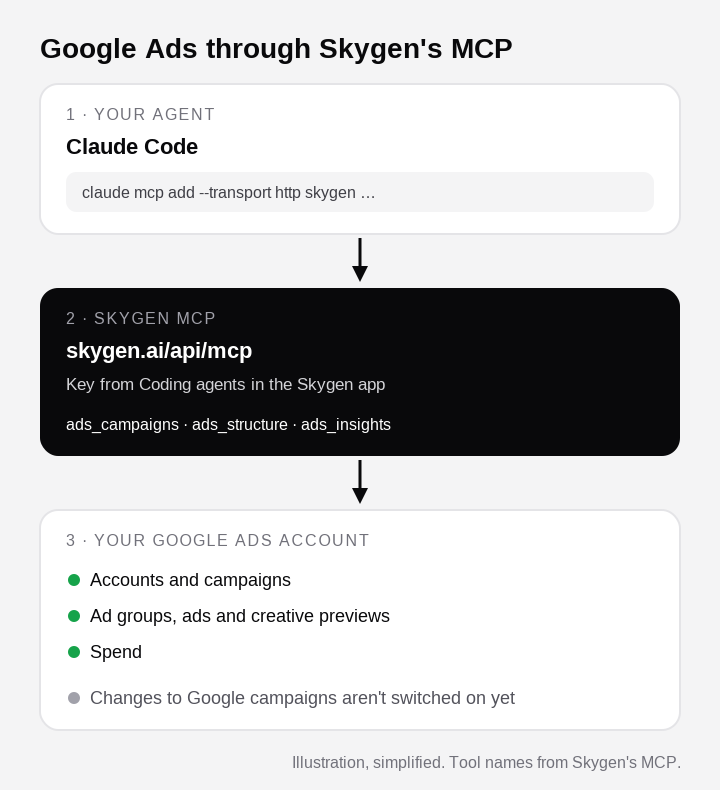
Reading Google Ads through Skygen's MCP. Illustration, simplified.
The short version
Google Ads MCP gives your AI agent read-only access to Google Ads through Google's own server. Set up Google Cloud once, run it locally for desktop clients or on Cloud Run for the web, and start with reads. For changes, pick a write-capable server and check its approval step.
Running Meta ads too? Read our Meta Ads MCP guide. Prefer rules to agents? See how to automate Facebook ads.